
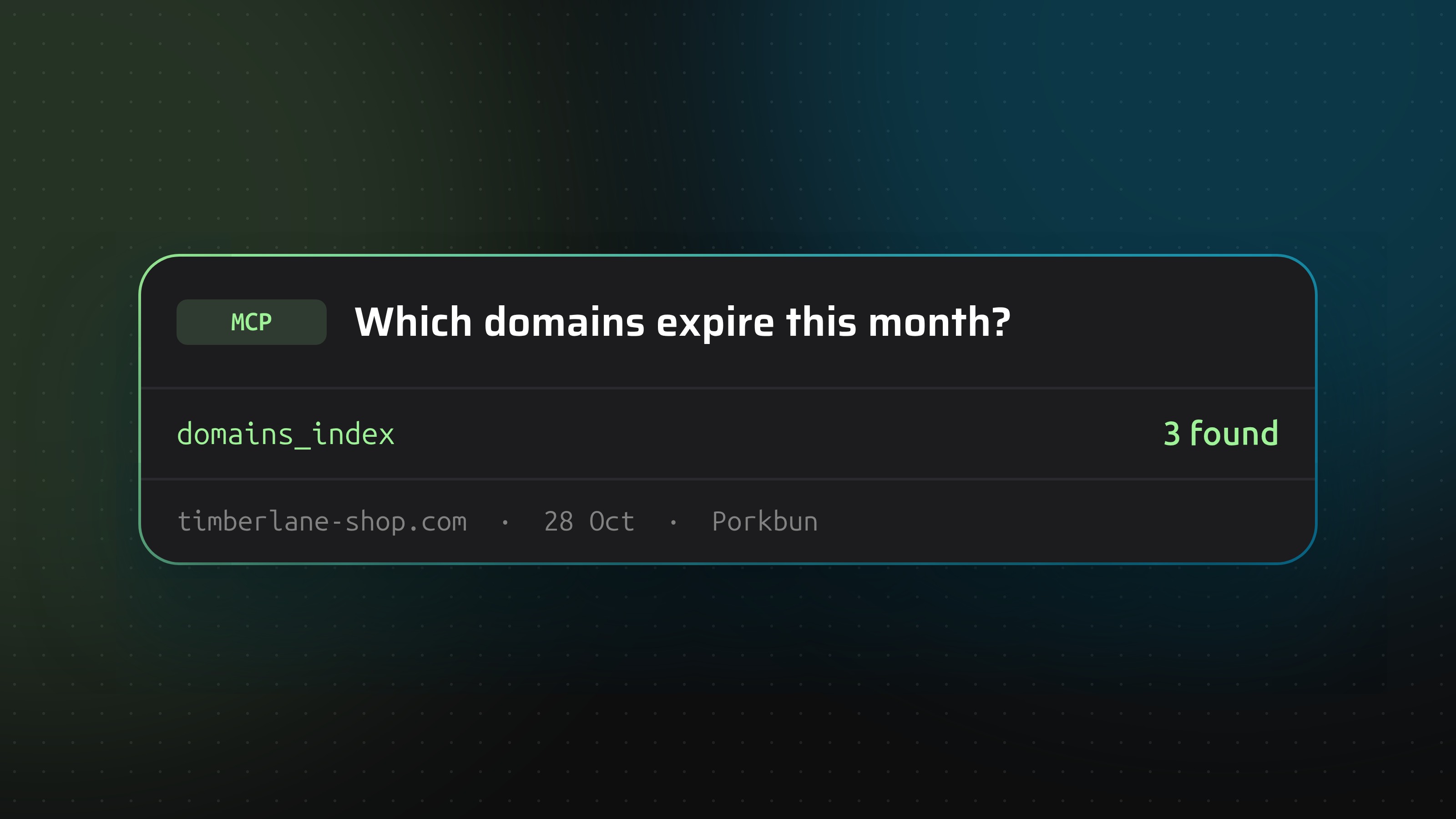
"Which of our domains expire this month?" is a question you can type to an AI assistant, if it can reach your DNS. DNSense now has an MCP server, so it can.
MCP, the Model Context Protocol, is the open standard assistants use to call tools in other software. Every action in the DNSense API is offered as a tool, and the assistant uses them the way a script would.
What the assistant can do
It acts as you. It sees the zones, domains and connections of the team you are working in, and it can do what your role allows: list domains, read records, add or change a record, roll back a change.
Nothing is looser than for you. A Viewer cannot change records through Claude, and a change that needs approval waits for approval. Changes show up in the zone history and the audit log like any other.
A few areas are left out on purpose: signing in, two-factor, your password and API keys. Those need you in the app.
The server address
https://api.dnsense.io/mcp
It speaks Streamable HTTP and needs authentication on every request. There are two ways to give the assistant that.
Option 1: approve the connection
This works for assistants that support OAuth, such as Claude.
- In your assistant, add a custom connector or remote MCP server and paste the address above.
- The assistant sends you to DNSense. Sign in if you are not already.
- Check the application name and the account shown, then click Allow access.
You go back to the assistant, connected. There is no key to copy. DNSense made one for you, named after the application, for example Claude (OAuth).
Option 2: use an API key
Use this for tools that take a header instead of an approval screen, such as Claude Code.
- Create a key under Account > API keys and copy the secret. It is shown once.
- Add the server with the key as a Bearer token:
claude mcp add --transport http dnsense https://api.dnsense.io/mcp --header "Authorization: Bearer <your key>"
Other assistants have a field for headers or a token. Use the same value there.
Try it
Start with questions, so you see what it can reach before it changes anything:
- Which domains expire in the next 30 days?
- Show the records of timberlane-shop.com.
- What changed in this zone last week?
Then ask for a change, such as adding an A record. Read what it is about to do and check the result in the zone history.
Take access away
Open Account > API keys. The connection is in the list, with the time it was last used. Disable pauses it, Delete ends it. Anything using that key stops working at once.
An assistant is a tool with your access, so connect only the ones you trust, and give them a role no stronger than the work needs. A team that wants an assistant to read but never write can give that person a Viewer role.
If it does not connect
- A
401means the key is wrong, disabled or deleted. Create a new one. - The consent screen says the application is not registered when the assistant skipped its registration step. Remove the connector and add it again.
- Redirect addresses must be
https, orhttponlocalhost. An assistant with another kind of callback cannot connect through the approval screen yet. Use an API key instead.