Openprovider is the odd one out. There is no token or key to generate. DNSense signs in with a username and password, the same pair the Openprovider API itself uses, and gets its own access from that.
Do not hand DNSense the login of the person who owns the account. Add a separate contact in the Reseller Control Panel for DNSense and use its credentials. If the connection is ever compromised, you disable that one contact and nothing else changes.
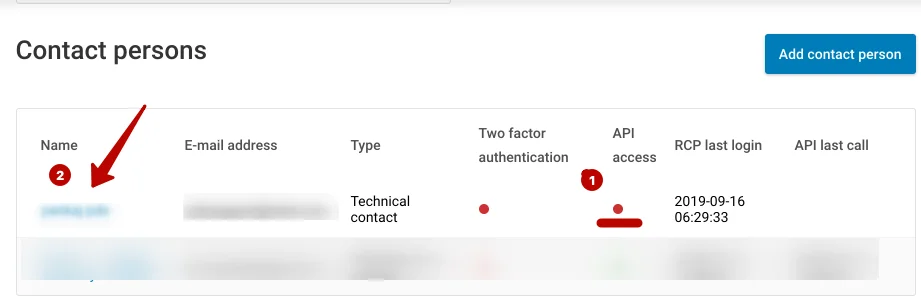
API access is off by default and is set per contact.
- Log in to the Reseller Control Panel and go to Account > Account Overview. The Contact persons list has an API access column: a green dot means enabled, a red dot disabled.
The API accepts a plain password. A password hash, which some Openprovider scripts use, does not work with the REST API that DNSense talks to.
Restrict by IP address
Openprovider can limit API access per contact to certain IP addresses. On the contact's details page you can fill in a whitelist, and wildcards and IPv6 are supported. When the whitelist is empty, any address is allowed. When it has entries, only those addresses are.
Whitelist the address DNSense connects from, or leave it empty. Your own address will not do. If you are unsure which address that is, ask DNSense support. The exact screen names in the Openprovider panel change now and then, so look for the contact's detail page and its API settings.
Connect it to DNSense
Add a connection, choose Openprovider and fill in:
TTL quirk
Openprovider only keeps TTLs of 900, 3600, 10800, 21600, 43200 and 86400 seconds. Any other value is stored as 86400 without warning. DNSense limits the TTL options for Openprovider zones to that list, so you cannot pick a value that would be silently changed.